
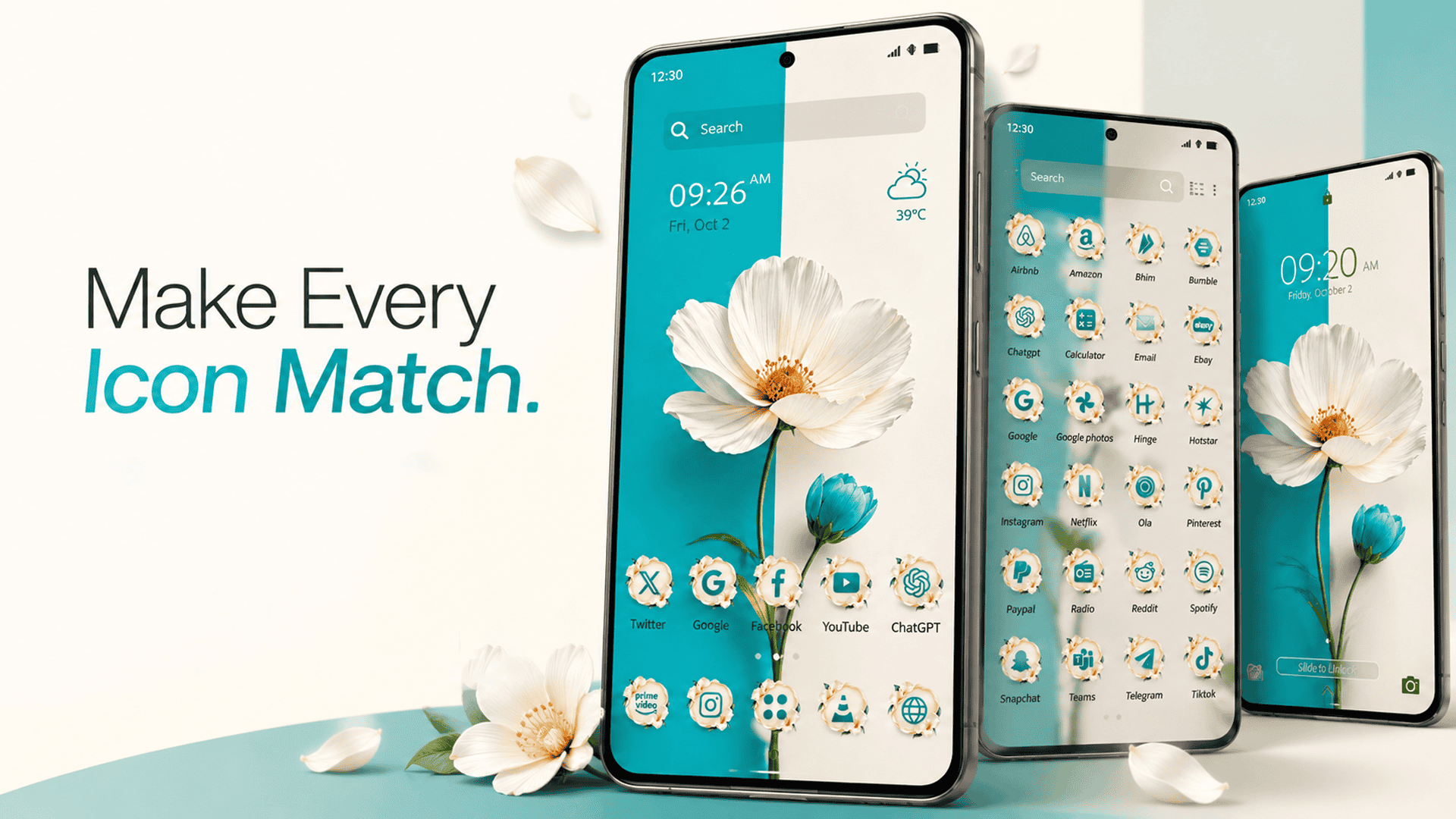
Your smartphone is more than a device you use every day. It’s a reflection of your personality, preferences, and style. From beautiful wallpapers to customized app icons and stylish home screens, personalizing your Android phone can make everyday use feel more enjoyable.
But how do you create an Android theme that matches your exact taste instead of settling for a design that everyone else uses?
CMM Launcher helps you explore Android home screen customization, including themes, wallpapers, app icons, and other visual elements. With prompt-based theme creation where supported, you can describe your preferred design and explore creative ways to personalize your phone.
Whether you love minimalist designs, colorful aesthetics, futuristic visuals, or nature-inspired backgrounds, this guide explains how to create your own Android theme and why CMM Launcher is worth exploring.
What Is an Android Theme?
An Android theme is a collection of visual elements that influence the appearance of your smartphone. Depending on your device and the customization tools you use, a theme may include wallpapers, app icons, colors, widgets, and home screen layouts.
A well-designed theme brings these elements together to create a consistent look.
For example, a minimalist theme might feature a simple white wallpaper, monochrome icons, and a clean layout. A gaming-inspired theme could use dark backgrounds, neon colors, and bold visual elements.
Creating your own Android theme lets you choose a style that reflects your preferences rather than relying entirely on your phone’s default appearance.
Why Use CMM Launcher to Create Your Own Android Theme?
Your phone’s default launcher may provide basic personalization options, but a customizable launcher can offer another way to explore your home screen’s appearance.
CMM Launcher is worth exploring if you want to personalize your Android experience and discover different visual styles.
Depending on the features available in your version, you may be able to explore options related to themes, wallpapers, app icons, and home screen customization.
Here is why choosing a launcher that fits your needs matters:
- Personalized appearance: Explore designs that match your taste.
- Wallpaper customization: Find backgrounds that complement your preferred style.
- App icon styling: Discover supported options for creating a coordinated home screen.
- Flexible layouts: Arrange apps and other supported elements to suit your preferences.
- Creative possibilities: Experiment with different colors, themes, and visual concepts.
If your version supports prompt-based theme creation, you can also use written descriptions to communicate the design you want to explore.
How to Create Your Own Android Theme: Step-by-Step Guide
Follow these steps to plan and personalize your Android home screen using a compatible launcher such as CMM Launcher.
Step 1: Choose Your Theme Style
Before changing anything, decide what you want your smartphone to look like.
Here are some popular Android theme styles:
- Minimalist: Clean layouts, simple icons, and neutral colors.
- Dark: Black or deep-colored backgrounds with contrasting elements.
- Nature-inspired: Forests, mountains, flowers, and natural color palettes.
- Gaming: Bold colors, dramatic backgrounds, and futuristic visuals.
- Pastel: Soft pink, lavender, mint, and other gentle colors.
- Luxury: Elegant patterns, black-and-gold combinations, and refined styling.
Choosing a theme style first helps you create a consistent design rather than mixing unrelated visual elements.
Step 2: Explore CMM Launcher
Install CMM Launcher from its official Google Play listing if it is available and compatible with your device.
Open the app and explore its current home screen customization options. Look for the theme, wallpaper, icon, and personalization settings available in your version.
Review the app’s features before getting started so you know which elements you can customize.
Step 3: Choose a Wallpaper That Matches Your Style
Your wallpaper is one of the most noticeable parts of your smartphone. It provides the visual foundation for your theme.
Choose a background that complements your preferred colors and icon style.
For example:
- Use a mountain landscape for a peaceful, nature-inspired look.
- Choose a dark abstract background for a modern appearance.
- Try a colorful gradient for a vibrant home screen.
- Select a simple geometric pattern for a minimalist design.
If supported AI design tools are available, you can explore wallpaper ideas using text prompts.
Example prompt:
“Create a peaceful mountain wallpaper with soft blue skies, warm sunrise lighting, and a clean composition for an elegant Android home screen.”
Step 4: Customize Your App Icons
App icons play an important role in making your home screen look organized.
Try to maintain a consistent style across your icons. Matching colors and shapes can make even a simple layout look more polished.
For example, a dark theme might work well with monochrome icons, while a pastel theme could use soft pink and lavender tones.
Example prompt:
“Design a minimalist app icon style with rounded shapes, soft blue accents, white backgrounds, and clean modern details.”
AI tools can help develop icon concepts, but applying generated icons to installed apps depends on the launcher features available.
Step 5: Explore Prompt-Based Theme Creation
Want something more personal than a ready-made theme? Text prompts can help you describe your preferred aesthetic when using a compatible AI theme-creation tool.
Instead of searching for a specific design, start by explaining what you want.
For example:
“Create a futuristic Android theme with a black wallpaper, neon purple and blue highlights, geometric app icons, and a sleek cyberpunk style.”
For better results, include:
- Your preferred theme style.
- Two or three main colors.
- A description of the wallpaper.
- Your preferred icon appearance.
- The overall mood of the design.
If prompt-based creation is supported in your version of CMM Launcher, follow its in-app instructions to explore the available workflow and apply supported elements.
Step 6: Arrange Your Home Screen
A good Android theme should look attractive and remain practical to use.
Arrange your most frequently used apps where you can access them easily. Avoid overcrowding the screen if you want a clean appearance.
Depending on your device and launcher support, you may also be able to arrange compatible widgets, shortcuts, and other home screen elements.
For example, a minimalist theme might use a simple clock widget and a few essential apps, while a more colorful design could feature a coordinated arrangement of shortcuts.
Step 7: Review and Refine Your Theme
Once you have selected your visual elements, review the entire home screen.
Ask yourself:
- Does the wallpaper complement the icons?
- Are the app names easy to read?
- Do the colors work well together?
- Is the layout convenient for everyday use?
- Are widgets and shortcuts arranged clearly?
Make adjustments until the overall design feels consistent and comfortable to use.
Best Text Prompts for Creating Custom Android Themes
If you want to explore prompt-based customization, these examples can help you get started.
| Theme style | Example prompt |
|---|---|
| Minimalist | Create a clean white Android theme with simple black icons and a light gray background. |
| Cyberpunk | Design a futuristic theme with neon purple lights, electric blue accents, and a dark city wallpaper. |
| Nature | Create a peaceful forest-inspired theme with green colors and soft natural lighting. |
| Pastel | Design a cute pink-and-lavender theme with soft colors and rounded icon concepts. |
| Luxury | Create an elegant black-and-gold theme with refined patterns and a sophisticated appearance. |
| Space | Design a cosmic theme with stars, galaxies, and deep blue tones. |
These prompts provide design inspiration. Actual theme generation and application depend on the capabilities of the tool you use.
What Are the Benefits of Creating Your Own Android Theme?
Customizing your Android theme is not just about appearance. It can also help you create a home screen that suits your habits and preferences.
1. Express Your Personality
Choose colors, wallpapers, and visual styles that reflect your interests. Your home screen can be minimalist, colorful, elegant, or playful.
2. Create a Consistent Design
Matching wallpapers, icons, and other visual elements can make your smartphone look more polished.
3. Improve Home Screen Organization
Thoughtful layouts can make frequently used apps easier to find and reduce visual clutter.
4. Refresh Your Phone Without Buying a New One
A new wallpaper, theme, or icon style can change the appearance of your existing device without requiring an upgrade.
5. Experiment With Creative Ideas
With supported customization tools, you can explore different styles and refine your design until it matches your preferences.
CMM Launcher vs. Your Default Android Launcher
Should you use your phone’s default launcher or explore CMM Launcher? The right choice depends on the customization options you need.
| Feature | Default Android launcher | CMM Launcher |
|---|---|---|
| Home screen appearance | Depends on the device | Explore the options supported by the app |
| Wallpapers | Device-dependent | Check available wallpaper features |
| App icon customization | May be limited | Check supported icon options |
| Theme choices | Manufacturer-dependent | Check current theme features |
| Additional personalization | Varies by device | Depends on the app version |
The table provides a general comparison. Actual features vary by device and app version, so review CMM Launcher’s current Google Play listing before installing.
Frequently Asked Questions (FAQs)
1. How do I create my own Android theme?
Choose a theme style, select a matching wallpaper, customize supported app icons, and arrange your home screen. A compatible launcher such as CMM Launcher can help you explore additional personalization options.
2. What is CMM Launcher used for?
CMM Launcher is an Android launcher that users can explore for home screen personalization. Check its current app listing to verify its available features, including themes, wallpapers, app icons, and other customization options.
3. Can I create an Android theme using AI?
Yes. Some AI-powered design tools can generate or guide theme creation from text prompts. The ability to create and apply a complete Android theme depends on the tool’s capabilities.
4. Can I customize my Android wallpaper and app icons together?
Yes. You can coordinate your wallpaper and supported icon styles to create a consistent look. The available customization options depend on your device and launcher.
5. Can I customize widgets with CMM Launcher?
Widget support varies by launcher, Android version, and widget provider. Check the current CMM Launcher listing and in-app settings to see which widget-related options are available.
6. Do I need design skills to create an Android theme?
No professional design skills are necessary to begin customizing your home screen. Start with a color palette and a style you like, then adjust your wallpaper, icons, and layout.
7. Is CMM Launcher free?
Check CMM Launcher’s current Google Play listing for pricing, availability, and any in-app purchases. Feature availability may vary by version.
8. Will changing my launcher delete my apps?
Changing your default launcher generally does not delete installed apps. It changes the home screen experience. You can usually switch back to your previous launcher through your device’s default home app settings.
Conclusion: Personalize Your Android Phone With CMM Launcher
Creating your own Android theme is a simple way to make your smartphone feel more personal. By combining the right wallpaper, coordinated icons, a suitable layout, and other supported customization options, you can build a home screen that matches your style.
CMM Launcher is worth exploring if you want another way to personalize your Android experience and discover different visual possibilities.
Start with a design idea, experiment with colors and wallpapers, and explore the features available in your version of CMM Launcher.
Your smartphone, your style. Make your Android home screen feel more like you with CMM Launcher.


Leave a Reply