Looking for the best Android launchers with 3D effects? If you want to give your smartphone a fresh look without changing your device, a 3D Android launcher is worth exploring. These launchers can add animated screen transitions, stylish themes, custom icons, and personalized home screens to your everyday Android experience.
CMM Launcher is one option to consider if you enjoy visual customization. It offers 3D transition effects, themes, wallpapers, gesture controls, and smart app organization, allowing you to personalize the way your Android home screen looks and works.
In this guide, we’ll explore what makes a 3D launcher useful, highlight CMM Launcher’s key features, and explain what to consider when comparing it with other Android launchers.
What Is a 3D Android Launcher?
A 3D Android launcher is an app that replaces or customizes your phone’s default home screen with visual effects, animations, themes, and additional personalization options.
Unlike a basic launcher, a 3D launcher can make switching between home screens and opening the app drawer more visually engaging. Depending on the app, you may be able to customize transition styles, icons, wallpapers, and other interface elements.
If you want more control over your phone’s appearance, a launcher with 3D effects can be a simple way to refresh your Android experience.
Why Choose CMM Launcher for 3D Effects?
CMM Launcher is an Android personalization app designed to make your phone’s interface more customizable. Its listed features include 3D screen transitions, themes, wallpapers, gesture shortcuts, and smart app organization.
What makes it interesting for users searching for the best Android launchers with 3D effects is the combination of visual customization and everyday convenience.
1. Enjoy 3D Screen Transition Effects
One of CMM Launcher’s main attractions is its collection of 3D transition effects. These animations change how your home screen or app drawer moves when you navigate between screens.
Instead of relying on the same standard transitions, you can explore different visual effects and choose a style that suits your preferences.
If you enjoy animated interfaces and want your phone to feel more personalized, this is a feature worth exploring.
2. Personalize Your Home Screen With Themes
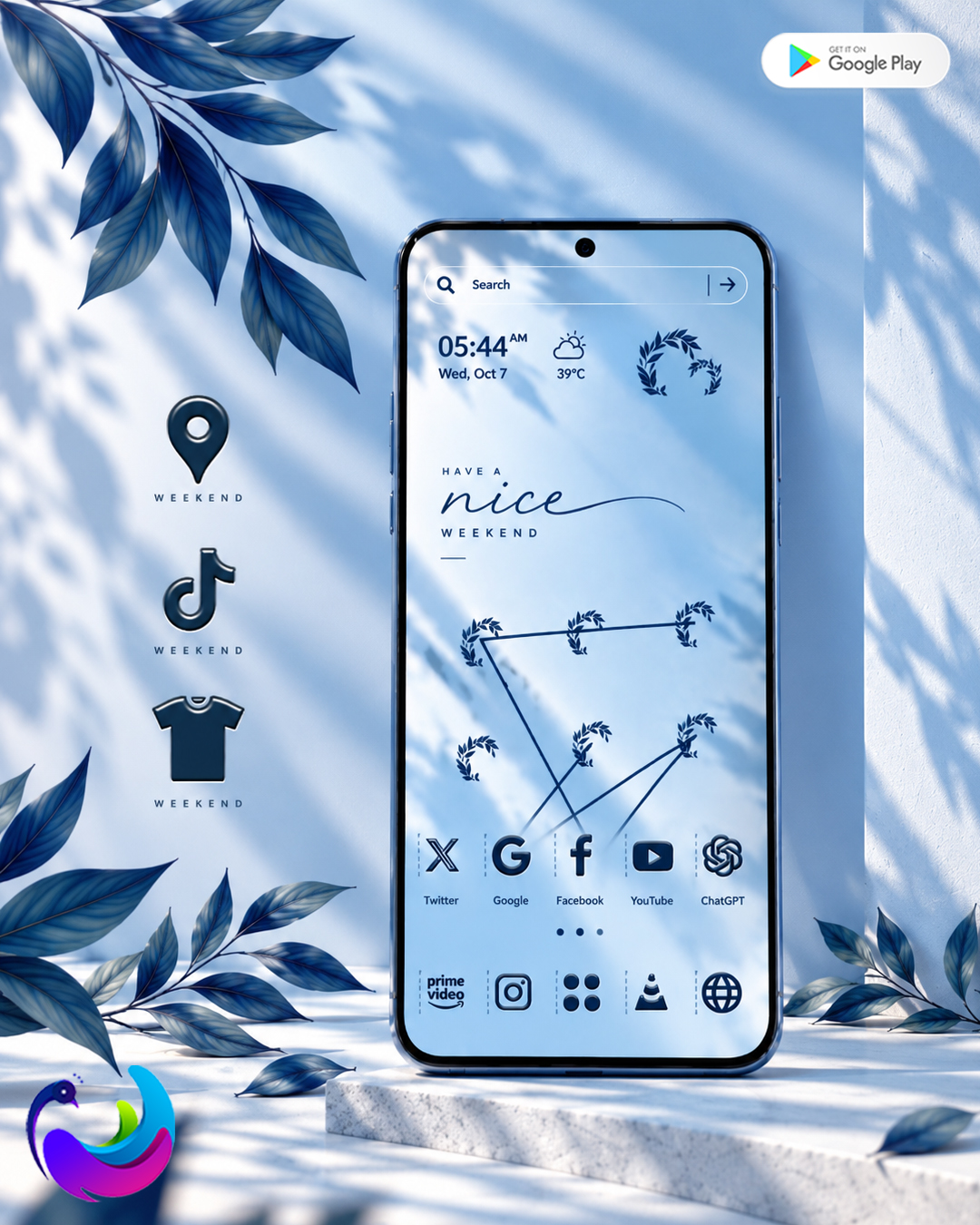
A good Android launcher should offer more than animations. CMM Launcher also provides themes and wallpapers that help you change the overall appearance of your device.
You can explore different visual styles to create a home screen that reflects your personality. Depending on the available theme, the appearance of icons, backgrounds, and other interface elements may change.
This makes CMM Launcher an option for people who want a customized Android home screen without manually changing every element.
3. Customize Home Screen and App Drawer Effects
Your home screen and app drawer serve different purposes, so having separate transition settings can be useful.
CMM Launcher lists options for customizing effects on the home screen and app drawer independently. This gives you more flexibility when deciding how your phone should look and respond during navigation.
The available effects may vary by app version and device compatibility.
4. Use Gesture Controls for Everyday Actions
Gesture controls can make common actions easier to access. CMM Launcher supports configurable gestures for actions such as locking the screen or opening search.
Instead of navigating through several menus, you can use supported gestures to reach certain functions more quickly.
For the best experience, choose gestures that are easy to remember and avoid assigning too many actions that you rarely use.
5. Find Apps With Smart Search and Organization
Visual effects are important, but everyday usability matters too. CMM Launcher includes smart search features for finding apps and other supported items, along with automatic app organization into folders.
These tools can help you locate frequently used apps without scrolling through a crowded home screen.
A launcher that combines customization with practical organization can be more useful than one that focuses only on animations.
6. Explore App-Hiding and Lock Features
CMM Launcher also lists privacy-related features, including options to hide apps and use supported app-lock or screen-lock functions.
These features may require specific permissions and may work differently depending on your Android version. Review the app’s current permissions and privacy information before enabling them.
Remember that app hiding and launcher-level locking are not substitutes for Android’s built-in security protections.
CMM Launcher vs. Other Android Launchers
When choosing among the best Android launchers, it helps to compare the features you actually need rather than judging an app by its appearance alone.
If you prefer a minimalist interface or productivity tools, another launcher may suit you better. Check each app’s current listing before installing it, especially if a particular animation or customization feature is essential to you.
How to Get Started With CMM Launcher
Getting started is straightforward:
- Open the Google Play Store and search for CMM Launcher.
- Check the developer, app details, reviews, and requested permissions.
- Install the app if it is compatible with your device.
- Follow the setup instructions to choose it as your home app, if prompted.
- Explore the theme and wallpaper options.
- Open the launcher settings and look for screen transition or 3D effect options.
- Customize your gestures and app organization to suit your routine.
The exact menu names and available settings may vary by version. You can find the app on Google Play.
Is CMM Launcher the Best Android Launcher With 3D Effects?
CMM Launcher is worth considering if you want a more animated home screen combined with themes, wallpapers, smart search, and gesture controls.
However, the best Android launcher depends on your priorities. If 3D transitions and visual personalization are your main goals, CMM Launcher deserves a place on your shortlist. If you care more about minimalism, productivity, or extensive layout controls, compare alternatives before making your choice.
Also consider performance on your own device. Animated transitions can use additional system resources, and the actual experience depends on your phone’s hardware, Android version, and launcher settings.
Final Verdict
Choosing one of the best Android launchers with 3D effects is about finding the right balance between appearance, usability, and performance.
CMM Launcher brings together 3D transition effects, themes, wallpapers, gesture controls, and smart app organization. These features make it an option for Android users who want to personalize their phones beyond the default home screen.
Before installing it, review its current features, permissions, privacy disclosures, and user feedback. Then try the available effects and decide whether they improve your everyday experience.
If you enjoy customizing your phone and want to explore animated home screen transitions, CMM Launcher is worth a closer look.
Frequently Asked Questions (FAQs)
1. What is the best Android launcher with 3D effects?
CMM Launcher is one option for Android users who want 3D screen transitions, customizable themes, wallpapers, and gesture controls. The best choice depends on your device and preferred features.
2. Does CMM Launcher support 3D effects?
Yes. CMM Launcher’s Google Play listing describes 3D transition effects and options to customize effects for the home screen and app drawer. Availability may vary by version.
3. Is CMM Launcher free to use?
CMM Launcher is listed as a free-to-install Android app on Google Play, and its listing indicates that it contains ads. Check the current listing for any optional purchases or changes to its terms.
4. Can I customize my Android home screen with CMM Launcher?
Yes. CMM Launcher offers themes, wallpapers, transition effects, and supported gesture controls to help you personalize your Android home screen.
5. Does CMM Launcher work on all Android phones?
Compatibility depends on your device, Android version, and the current app release. Check the Google Play listing for compatibility information before installing it.
6. Does a 3D launcher slow down an Android phone?
It can, depending on the animations used and your phone’s hardware. If your phone feels slower, try simpler effects, reduce visual customization, and check whether performance improves.
7. Is CMM Launcher safe to install?
No launcher should be considered automatically safe just because it is available in an app store. Review its developer information, requested permissions, privacy policy, and current user feedback before installing it.
8. Can I switch back to my default Android launcher?
Generally, yes. You can usually return to your phone’s default home app through Android’s default-app settings. The exact steps depend on your device manufacturer and Android version.
9. What is the difference between a 3D launcher and a regular launcher?
A 3D launcher offers additional animated transitions or visual effects, while a regular launcher may focus on basic navigation and home screen organization. The exact differences depend on the apps being compared.
10. How do I enable 3D effects in CMM Launcher?
Install CMM Launcher, open its settings, and look for transition or screen-effect options. Choose an available effect and test it on your home screen or app drawer. Menu names may differ between versions.