
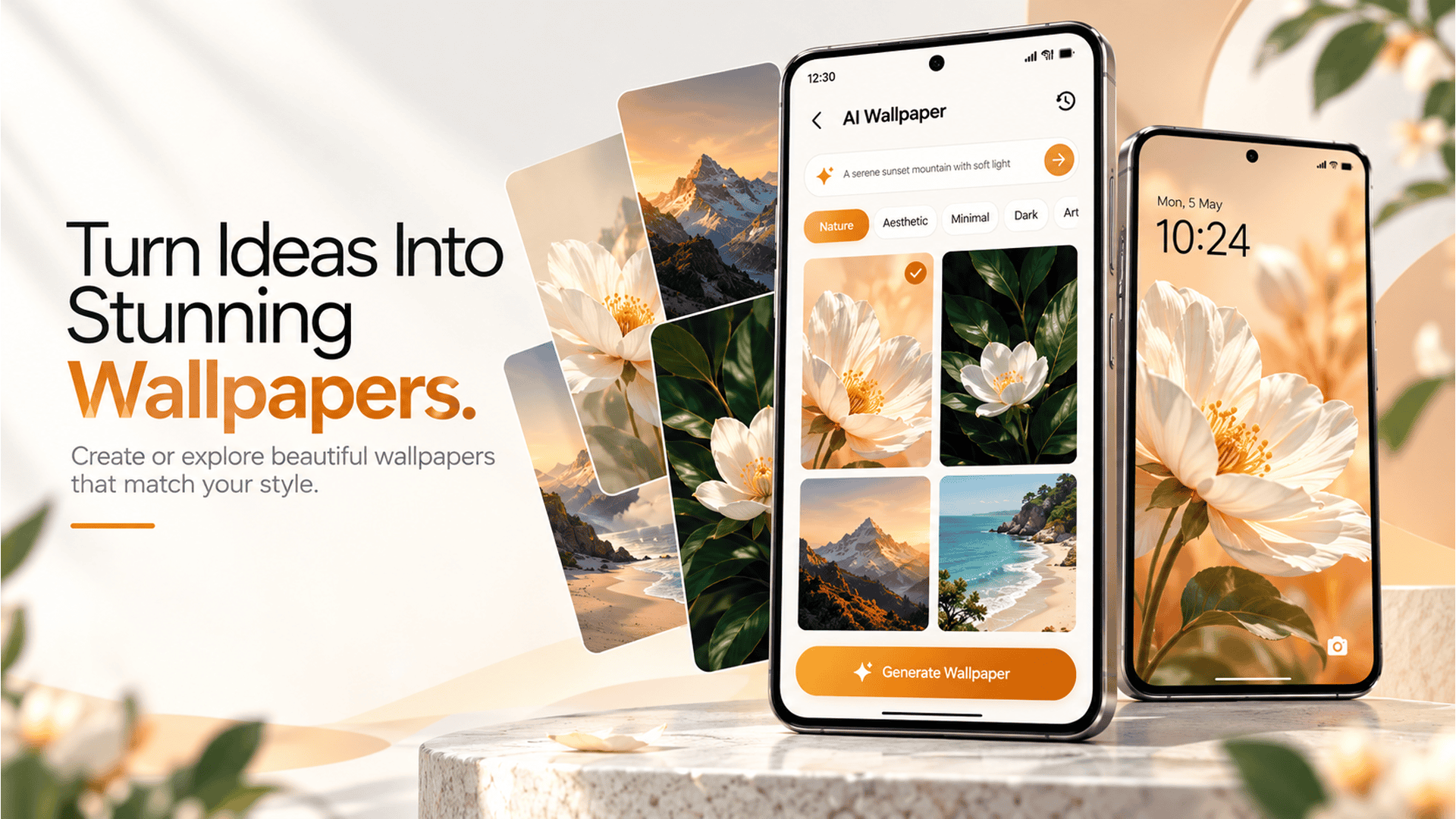
Have you ever wanted to give your Android phone a completely different look but couldn’t find a theme that matched your style? Maybe you want aesthetic wallpapers, colorful app icons, a minimalist home screen, or a futuristic design that reflects your personality.
With CMM Launcher, you can explore new ways to personalize your Android home screen. By entering a creative text prompt in a compatible prompt-based theme creation feature, you can describe the theme and icon style you want and explore designs inspired by your imagination.
Instead of settling for the same pre-made designs, you can start with your own ideas and discover a look that feels personal to you.
In this step-by-step guide, you’ll learn how to write effective prompts, explore custom Android themes and app icon designs, and create a home screen style that matches your preferences using CMM Launcher.
What Are Custom Android Themes and App Icons?
An Android theme is a visual style that can bring together your wallpaper, colors, app icons, and home screen appearance. Depending on your device and launcher, it may also include supported widgets and layout options.
Custom app icons allow you to change the visual appearance of app shortcuts, helping you create a consistent design across your home screen.
For example, you could create:
- A minimalist theme with white backgrounds and simple black icons.
- A pastel theme with pink and lavender colors.
- A gaming theme with dark backgrounds and neon accents.
- A nature-inspired theme with green tones and scenic wallpapers.
- A luxury theme with elegant black-and-gold details.
With prompt-based design tools, where supported, you can describe these ideas in your own words and explore creative possibilities instead of choosing only from existing designs.
Why Choose CMM Launcher for Theme and Icon Customization?
CMM Launcher is an Android launcher worth exploring if you want to personalize your phone’s home screen.
The benefit of using a customizable launcher is that you can explore different visual styles and available personalization tools in one place. Depending on the features supported by your current version, these may include themes, wallpapers, app icons, and other home screen options.
With a compatible prompt-based theme creation feature, your written instructions can help communicate the design you want to explore.
For example, instead of searching for a generic dark theme, you could describe a dark theme with purple neon lights, rounded icons, and a futuristic wallpaper.
Your prompt describes your vision; the available customization tools determine which elements you can create and apply.
Step-by-Step Guide to Creating Custom Themes and App Icons With CMM Launcher
Follow these steps to plan your personalized Android design.
Step 1: Open CMM Launcher and Explore Its Features
Start by installing or opening CMM Launcher on your Android device. If you haven’t installed it yet, check its current Google Play listing for availability and compatibility.
Explore the available personalization options and look for the theme creation or prompt-based customization feature, if supported in your version.
Take a moment to decide what you want to change: your wallpaper, app icons, overall theme, or home screen layout.
Step 2: Decide What Your Dream Theme Should Look Like
Before entering a prompt, think about the design you want.
Ask yourself a few simple questions:
- Which colors do I want to use?
- Should my theme look minimal, colorful, futuristic, or elegant?
- What kind of wallpaper would suit the design?
- Do I prefer rounded, geometric, monochrome, or colorful icons?
- Should the overall appearance feel calm, playful, or energetic?
Having a clear idea makes it easier to write a useful prompt.
For example, if you love minimalist designs, you might choose white and beige colors, simple icons, and a clean background.
If you prefer gaming aesthetics, you might choose a dark background with bright neon highlights.
Step 3: Enter a Prompt for Your Favorite Android Theme
This is where your creativity comes in.
If CMM Launcher’s available theme creation feature supports text prompts, enter a description of the look you want to explore. Use simple language and include details about colors, style, wallpaper, and overall mood.
Example prompt for a minimalist theme:
“Create a minimalist Android theme with a clean white background, soft beige accents, elegant icons, and a simple, modern appearance.”
Example prompt for a gaming theme:
“Design a futuristic gaming theme with a black wallpaper, neon blue and purple lights, bold visual elements, and a cyberpunk aesthetic.”
Example prompt for a nature theme:
“Create a peaceful nature-inspired theme with green colors, a forest landscape, soft sunlight, and a calm, refreshing style.”
A clear prompt gives the design tool more information about your preferences. Follow the feature’s instructions to explore the available design results.
Step 4: Create App Icon Designs That Match Your Theme
Your app icons are an important part of your phone’s overall appearance. Even a beautiful wallpaper can feel inconsistent if the icons use completely different styles.
When supported by the tool, describe the icon appearance you want using a separate prompt or additional design instructions.
Here are some examples.
Minimalist app icons
“Create simple, modern app icon designs with rounded shapes, white backgrounds, thin black outlines, and a clean minimalist style.”
Pastel app icons
“Design cute app icon concepts with soft pink, lavender, and mint colors, rounded shapes, and a playful aesthetic.”
Neon app icons
“Create futuristic app icon concepts with dark backgrounds, electric blue outlines, purple highlights, and a sleek cyberpunk style.”
Luxury app icons
“Design elegant app icon concepts with black backgrounds, subtle gold details, and refined geometric shapes.”
The exact ability to generate icons and apply them to installed apps depends on the supported features in CMM Launcher and the design tool you use.
Step 5: Choose a Matching Wallpaper
A wallpaper can bring the entire theme together. Choose a background that complements your icon colors and overall design.
For example, a pastel icon set may look good with a soft gradient wallpaper, while neon icons may work better against a darker background.
Try these wallpaper prompts for inspiration:
- “Create a dreamy pink sky with soft clouds and lavender tones.”
- “Design a futuristic city skyline with neon blue lights and dark buildings.”
- “Create a peaceful mountain landscape with green valleys and golden sunlight.”
- “Design an elegant black marble wallpaper with subtle gold patterns.”
If wallpaper generation is supported by your chosen tool, use your prompt to explore a background that matches the theme you have in mind.
Step 6: Apply Your Preferred Customization
After exploring your design options, review the available results and select the elements you want to use.
Follow the instructions provided in CMM Launcher to apply supported themes, wallpapers, icons, or home screen changes.
If a design is generated only as an image or concept, additional compatible customization tools may be needed to apply it to your Android home screen.
Step 7: Arrange Your Home Screen and Widgets
Once you have chosen your theme and icons, organize your home screen.
Place frequently used apps where they are easy to access. If your device and launcher support compatible widgets, arrange them to complement the design.
For example, a minimalist theme could use a simple clock widget and a clean layout, while a colorful theme could feature coordinated widgets and app shortcuts.
Make sure your wallpaper doesn’t make app names difficult to read and that your home screen remains convenient for everyday use.
Step 8: Refine Your Design Until It Feels Right
Your first idea doesn’t have to be your final design.
Try adjusting your prompt if the result doesn’t match your expectations. You could change the color palette, simplify the icon style, or describe the wallpaper more precisely.
For example, instead of writing:
“Create a cool Android theme.”
Try:
“Create a modern dark Android theme with a matte black background, subtle purple accents, rounded monochrome icons, and a clean, uncluttered layout.”
Specific descriptions communicate your preferred design more clearly.
Best AI Prompts for Custom Android Themes and App Icons
Looking for more inspiration? Here are additional prompt ideas you can adapt for supported theme creation tools.
| Style | Example prompt |
|---|---|
| Minimalist | Create a clean white theme with simple black icons and a soft gray wallpaper. |
| Anime-inspired | Create a colorful anime-inspired visual theme with pastel tones and dreamy scenery. |
| Cyberpunk | Design a futuristic theme with neon purple lights, electric blue accents, and a dark city background. |
| Nature | Create a peaceful forest theme with green colors and soft natural lighting. |
| Luxury | Design a sophisticated black-and-gold theme with elegant icon concepts. |
| Pastel | Create a soft pink-and-lavender theme with rounded icons and dreamy clouds. |
| Space | Design a cosmic theme with deep blue colors, stars, galaxies, and futuristic icon concepts. |
| Gaming | Create a bold gaming-inspired design with dark backgrounds and glowing red accents. |
These examples help communicate a visual direction. The ability to generate and apply each element depends on the features available in your chosen tool.
Tips for Writing Better Theme and Icon Prompts
To get more specific results from a prompt-based design tool, include the following details:
- Name the style: Describe whether you want minimalist, luxury, gaming, nature-inspired, or futuristic visuals.
- Specify the colors: Choose two or three main colors.
- Describe the wallpaper: Mention the background, imagery, or pattern you prefer.
- Explain the icon style: Include shapes, colors, and design details.
- Set the mood: Use words such as peaceful, elegant, playful, bold, or modern.
- Keep the design consistent: Make sure your wallpaper and icon descriptions complement each other.
For example:
“Create a coordinated Android theme with a deep navy wallpaper, subtle cyan highlights, rounded geometric icons, and a clean futuristic style.”
This approach gives you a more detailed starting point than a broad request for a beautiful theme.
What Are the Benefits of Customizing Your Android Phone?
Creating your own theme and app icon style can offer several advantages.
Express Your Personality
Choose designs that reflect your favorite colors, interests, and aesthetic preferences.
Create a Consistent Home Screen
Matching wallpaper colors and icon styles can give your phone a more polished appearance.
Explore Different Creative Ideas
Experiment with new styles and prompts to discover designs you might not have considered before.
Refresh Your Existing Smartphone
Changing your wallpaper, icons, and home screen layout can give your device a fresh look without purchasing a new phone.
Make Your Home Screen More Practical
A thoughtfully arranged home screen can help you access frequently used apps while keeping the design clean and easy to navigate.
Frequently Asked Questions (FAQs)
1. How can I create custom Android themes using CMM Launcher?
Open CMM Launcher and explore its available personalization features. If your version supports prompt-based theme creation, enter a description of your preferred colors, wallpaper, icon style, and overall aesthetic, then follow the available instructions to customize supported elements.
2. Can I create app icons using a text prompt?
Some AI design tools can generate or help develop app icon concepts from written prompts. Applying those designs to installed Android apps requires compatible icon customization features.
3. What should I include in an Android theme prompt?
Include your preferred theme style, color palette, wallpaper design, icon appearance, and overall mood. Specific descriptions help communicate your creative vision more clearly.
4. Can I create matching wallpapers and app icons?
Yes. You can describe matching colors and styles to develop a coordinated visual design. The ability to generate and apply both elements depends on the tools and features available.
5. Do I need graphic design skills to customize my Android theme?
No professional design experience is necessarily required to write a text prompt. Start with a simple idea and add more details about colors, shapes, and visual styles as you refine your design.
6. Can I customize widgets along with my Android theme?
Widget customization depends on your Android device, widget provider, and launcher support. You may be able to arrange compatible widgets to complement your wallpaper and icons.
7. Is CMM Launcher free to use?
Check the current CMM Launcher Google Play listing for its latest pricing, availability, and in-app purchase information. Feature availability may vary by version.
8. Will changing my Android theme delete my apps?
Changing a launcher theme or home screen appearance generally does not delete installed apps. However, back up important data and home screen arrangements if you want to preserve your existing setup.
Conclusion
Designing custom Android app icons and themes is a great way to make your smartphone feel more personal. From selecting a wallpaper and coordinating icon styles to arranging your home screen, small changes can create a completely different visual experience.
With CMM Launcher, you can explore available Android customization options and discover new ways to personalize your device. Where prompt-based theme creation is supported, simply describing your preferred design can help you explore creative possibilities for your home screen.
Start with an idea, choose your favorite colors, write a clear prompt, and refine the design until it matches your style.
Your ideas, your icons, your theme. Explore a more personalized Android experience with CMM Launcher.


Leave a Reply