
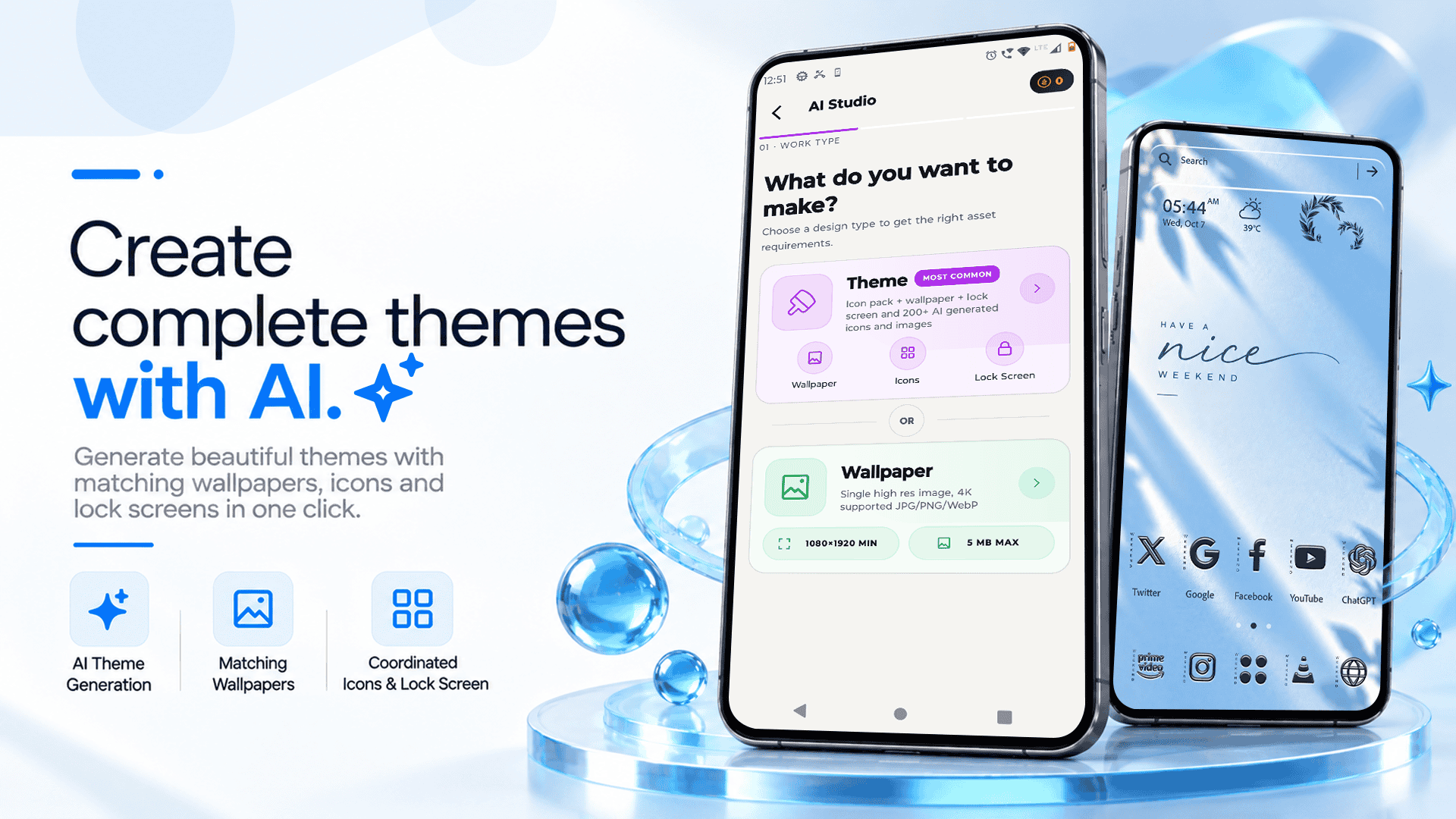
Your smartphone should reflect your personality, creativity, and style. With CMM Launcher, you can explore a new way to personalize your Android phone by creating unique themes using simple text prompts and your favorite app icons.
Instead of spending hours searching for wallpapers, icon packs, and matching designs, you can describe the look you want and use your creativity to build a personalized Android home screen. Whether you love minimal designs, futuristic aesthetics, cute characters, nature-inspired looks, or vibrant colors, prompt-based theme creation can make Android customization more exciting.
In this guide, discover how to create a unique Android theme from a simple text prompt with CMM Launcher, personalize your home screen with your favorite icons, and make your smartphone look truly yours.
What Is a Text-Prompt-Based Android Theme?
A text-prompt-based Android theme is a personalized phone design created by describing your preferred visual style in words.
For example, you could enter a prompt such as:
- “Create a minimalist black-and-gold Android theme with elegant icons.”
- “Design a cute pastel pink home screen with adorable app icons.”
- “Make a futuristic neon cyberpunk theme with glowing purple and blue colors.”
- “Create a nature-inspired Android theme with green leaves, soft backgrounds, and earthy tones.”
With CMM Launcher, users can explore prompt-based customization to create a home screen inspired by their ideas and preferences. You can also incorporate your favorite app icons into your overall design concept for a more personal experience.
The goal is simple: describe your style, personalize your theme, and transform your Android home screen into something unique.
How to Create a Unique Android Theme Using CMM Launcher
Creating a personalized Android theme can be easier when you start with a clear idea. Follow these steps to explore your preferred design.
Step 1: Install and Open CMM Launcher
Start by installing CMM Launcher from a trusted source and setting it up on your Android phone. Follow the on-screen instructions to make it your preferred launcher, if required.
Step 2: Imagine Your Ideal Theme
Think about the style you want for your smartphone. Do you prefer dark and elegant designs, colorful aesthetics, cute icons, or futuristic visuals?
Consider these elements before creating your prompt:
- Theme style: Minimalist, anime-inspired, futuristic, aesthetic, or nature-inspired.
- Color palette: Black and gold, pastel pink, ocean blue, or forest green.
- Wallpaper concept: Space, mountains, abstract art, flowers, or city lights.
- Icon style: Rounded, colorful, monochrome, cute, or coordinated with your wallpaper.
Having a clear visual idea can help you write a more effective prompt.
Step 3: Write a Simple Text Prompt
Describe your ideal theme in natural language. You do not need complicated design terminology to communicate your preferences.
For example:
“Create a dreamy purple Android theme with a galaxy wallpaper, glowing stars, a dark background, and matching rounded app icons.”
You can also try a more personalized prompt:
“Design a clean Android home screen with a soft beige background, minimalist icons, warm colors, and a premium aesthetic.”
The more clearly you describe your desired style, colors, and visual elements, the easier it is to communicate your vision.
Step 4: Personalize the Theme with Your Favorite Icons
App icons are an important part of your phone’s overall appearance. Choose icon styles that complement your wallpaper and theme colors.
For example, you might prefer:
- Minimalist icons for a clean, professional look.
- Pastel icons for a cute and aesthetic home screen.
- Neon icons for a gaming-inspired setup.
- Monochrome icons for a sophisticated appearance.
- Colorful icons for a vibrant and playful design.
With your preferred prompt and icon choices, you can work toward a home screen that reflects your individual taste.
Note: The availability of specific prompt-generation, icon-selection, and theme-application features depends on the current version of CMM Launcher.
Step 5: Apply and Enjoy Your Personalized Android Theme
Once you have created or customized your desired design using the available features, apply the theme and review your home screen.
Check whether the wallpaper, icons, and overall colors work well together. If something does not look right, refine your prompt or adjust the available customization settings.
Your final home screen can become a reflection of your creativity rather than a standard layout.
Best Text Prompts for Creating Android Themes
Not sure what to write? Try these creative Android theme prompts for inspiration.
1. Minimalist Android Theme
Prompt: “Create a minimalist Android theme with a clean white background, soft gray accents, simple rounded icons, and an elegant modern look.”
Best for users who love clean layouts and distraction-free aesthetics.
2. Cute Pink Android Theme
Prompt: “Design a cute pink Android theme with pastel pink wallpaper, adorable illustrations, soft colors, and matching rounded app icons.”
Best for users who enjoy playful, colorful, and aesthetic designs.
3. Dark Premium Android Theme
Prompt: “Create a premium dark Android theme with a black background, gold accents, elegant app icons, and a luxurious modern appearance.”
Best for users who prefer sophisticated and stylish phone designs.
4. Futuristic Cyberpunk Theme
Prompt: “Design a futuristic cyberpunk Android theme with neon purple and electric blue colors, a futuristic city wallpaper, and glowing-style app icons.”
Best for gaming enthusiasts and fans of science-fiction aesthetics.
5. Nature-Inspired Android Theme
Prompt: “Create a peaceful nature-inspired Android theme with green leaves, forest scenery, earthy colors, and simple matching app icons.”
Best for users who want a calm, refreshing home screen.
6. Space and Galaxy Android Theme
Prompt: “Create a galaxy-inspired Android theme with deep blue space, glowing stars, colorful nebulae, and coordinated cosmic app icons.”
Best for anyone who loves astronomy and space-inspired visuals.
Why Use CMM Launcher to Personalize Your Android Phone?
Android customization allows you to make your phone feel more personal. CMM Launcher provides a launcher-based approach to changing the look and feel of your home screen.
Here are some reasons to explore prompt-inspired customization:
- Personalized designs: Start with a visual idea that matches your interests.
- Creative freedom: Experiment with colors, styles, and different theme concepts.
- Favorite icon styling: Choose icon designs that complement your preferred aesthetic, where supported.
- More expressive home screens: Move beyond the default look of your phone.
- Multiple styles to explore: Experiment with minimalist, colorful, dark, futuristic, and nature-inspired designs.
Feature availability may vary by app version, so check the current CMM Launcher interface for supported theme-creation and icon-customization options.
Tips for Writing Better Android Theme Prompts
A good prompt describes the visual result you want. You can make your instructions more specific by combining a few key details.
Use this simple formula:
Theme style + color palette + wallpaper idea + icon style + overall mood.
For example:
“Create a futuristic Android theme with a dark navy background, neon blue accents, a space-inspired wallpaper, rounded icons, and a sleek high-tech atmosphere.”
For better results:
- Be specific about your preferred colors.
- Describe the wallpaper or background you imagine.
- Mention the icon shape, color, or aesthetic you prefer.
- Keep your first prompt simple and refine it as needed.
- Make sure the wallpaper and icons complement each other.
You can also experiment with seasonal themes, festival-inspired designs, favorite hobbies, or your own artistic ideas.
Frequently Asked Questions (FAQs)
1. Can I create a unique Android theme using a text prompt?
Yes, prompt-based customization lets you describe your preferred colors, wallpaper style, and overall appearance in words. With CMM Launcher, explore the theme-creation options available in your installed version to personalize your Android home screen.
2. What is CMM Launcher?
CMM Launcher is an Android launcher designed to help users personalize their phone’s home screen. Depending on the available features, users can explore different visual styles and customization options to create a more personalized Android experience.
3. How do I create an Android theme with CMM Launcher?
Install and open CMM Launcher, explore its available customization features, describe your desired theme with a simple text prompt if prompt generation is supported, and personalize the design using the available wallpaper and icon options. Apply your preferred look when you are satisfied with the result.
4. Can I use my favorite app icons in an Android theme?
You can personalize app icons using the icon customization options supported by your launcher. The ability to select specific icons, generate new icon designs, or use custom icon packs depends on the features available in your version of CMM Launcher.
5. What should I include in an Android theme prompt?
Include your preferred theme style, colors, wallpaper concept, icon appearance, and overall mood. For example, “Create a dark purple galaxy theme with glowing stars, a cosmic background, and matching rounded icons.”
6. Do I need design skills to create a personalized Android theme?
No advanced design skills are necessary to describe your preferred style in a text prompt. Simple, clear instructions can help you communicate your ideas, while the available launcher features determine how you can turn those ideas into a theme.
7. Can I create aesthetic Android themes with AI prompts?
AI-assisted theme creation can help users explore aesthetic designs based on text descriptions. If AI or prompt-based theme generation is available in your version of CMM Launcher, you can try styles such as pastel, minimalist, cyberpunk, dark, or nature-inspired designs.
8. What are some popular Android theme prompt ideas?
Popular ideas include minimalist themes, pink aesthetic themes, dark premium designs, anime-inspired visuals, cyberpunk styles, galaxy wallpapers, and nature-inspired home screens. You can customize each concept with your preferred colors and icon styles.
9. Can I change my Android theme whenever I want?
Android launchers generally let users change supported home screen settings and appearance options. The exact themes and customization controls available depend on CMM Launcher and your device configuration.
10. Why should I use CMM Launcher instead of keeping the default home screen?
A launcher can provide additional ways to personalize your home screen, including supported layout, wallpaper, and icon options. CMM Launcher is worth exploring if you want to experiment with different visual styles and create a phone experience that better reflects your personality.
Create a Unique Android Theme with Text Prompts | CMM Launcher
Final Thoughts
Creating a unique Android theme does not have to begin with complicated design tools. Sometimes, all you need is a creative idea and a few simple words.
With CMM Launcher, you can explore a more personalized approach to Android customization by describing your preferred aesthetic, experimenting with theme concepts, and coordinating your favorite app icons with your home screen.
From cute pastel designs to dark premium themes and futuristic galaxy visuals, your imagination can inspire countless possibilities.
Ready to give your Android phone a fresh look? Explore CMM Launcher and start experimenting with your own theme ideas today.
Make your home screen personal, creative, and uniquely yours.


Leave a Reply