What if you could turn your creative ideas into a personalized Android theme with just a simple text prompt? From stylish wallpapers to unique app icons and eye-catching home screen designs, customizing your smartphone can be a fun way to express your personality.
CMM Launcher helps Android users explore home screen personalization, with customization possibilities for themes, wallpapers, app icons, styles, and more. With prompt-based theme creation where supported, you can describe the look you want and explore creative ways to personalize your Android experience.
Whether you prefer a minimalist aesthetic, colorful designs, futuristic visuals, or a nature-inspired home screen, your imagination can be the starting point for a fresh smartphone look.
In this guide, discover how to create theme ideas using text prompts, explore custom icon styles, and personalize your Android home screen with CMM Launcher.
What Is CMM Launcher?
CMM Launcher is an Android launcher designed for users interested in customizing their smartphone experience. It offers an alternative way to personalize the home screen and explore different visual styles.
Depending on the features available in your version, you can explore customization options related to themes, wallpapers, app icons, and home screen appearance.
Prompt-based theme creation, where supported, allows you to describe your preferred design in simple words. Instead of starting with a fixed style, you can communicate your creative vision through a text prompt.
For example:
“Create a futuristic theme with a dark background, neon blue accents, modern app icons, and a sleek cyberpunk style.”
This type of prompt describes the visual direction you want to explore. The ability to generate and apply specific elements depends on the tools and features supported by the app.
Create Your Own Android Theme With a Simple Text Prompt
One of the most exciting aspects of prompt-based customization is the freedom to describe your own design ideas.
Instead of relying entirely on predefined themes, you can start with a concept that reflects your personal style.
1. Describe Your Dream Theme
Begin by deciding how you want your smartphone to look. You might prefer a clean minimalist design, a vibrant gaming aesthetic, a soft pastel theme, or a futuristic interface.
Write a prompt that explains your preferred colors, mood, and overall style.
Example prompt:
“Create a minimalist Android theme with a soft beige wallpaper, elegant icons, warm neutral colors, and a clean, modern appearance.”
A clear description helps communicate your creative direction and gives you a starting point for exploring different designs.
2. Choose Your Favorite Colors and Style
Colors play an important role in making a theme feel consistent. You can describe a color palette that matches your personality or complements your wallpaper.
Here are some ideas to try:
- Black and gold: A sophisticated and elegant look.
- Blue and purple: A futuristic, neon-inspired aesthetic.
- Pink and lavender: A soft, dreamy pastel style.
- Green and brown: A calming, nature-inspired appearance.
- White and gray: A clean and minimalist design.
Example prompt:
“Design a modern Android theme using deep navy, electric blue, and subtle silver accents with a sleek futuristic style.”
3. Explore Custom Wallpaper Designs
Your wallpaper is one of the first things people notice when they see your smartphone. Choosing a background that matches your theme can make your home screen feel more cohesive.
With supported AI-assisted design tools, text prompts can help you explore wallpaper ideas based on your imagination.
Try prompts such as:
- “Create a peaceful mountain landscape at sunrise with soft pink clouds.”
- “Design a futuristic city with neon lights and a dark cyberpunk atmosphere.”
- “Create a black marble wallpaper with elegant gold details.”
- “Design a dreamy pastel sky with pink clouds and lavender tones.”
Explore the wallpaper customization features available in CMM Launcher to find options that suit your preferred style.
4. Make Your App Icons Match Your Theme
App icons can change the entire appearance of your home screen. Matching their colors, shapes, and visual style with your wallpaper can create a more polished look.
Depending on the available customization features, you can explore different icon styles, including:
- Minimalist icons with simple shapes.
- Pastel icons with soft colors.
- Neon icons for a futuristic design.
- Monochrome icons for a clean appearance.
- Colorful icons for a playful home screen.
Example prompt:
“Create a matching app icon style with rounded shapes, a dark navy background, electric blue highlights, and a futuristic minimalist design.”
A consistent visual direction helps make your home screen look organized and distinctive.
5. Customize Your Home Screen Style
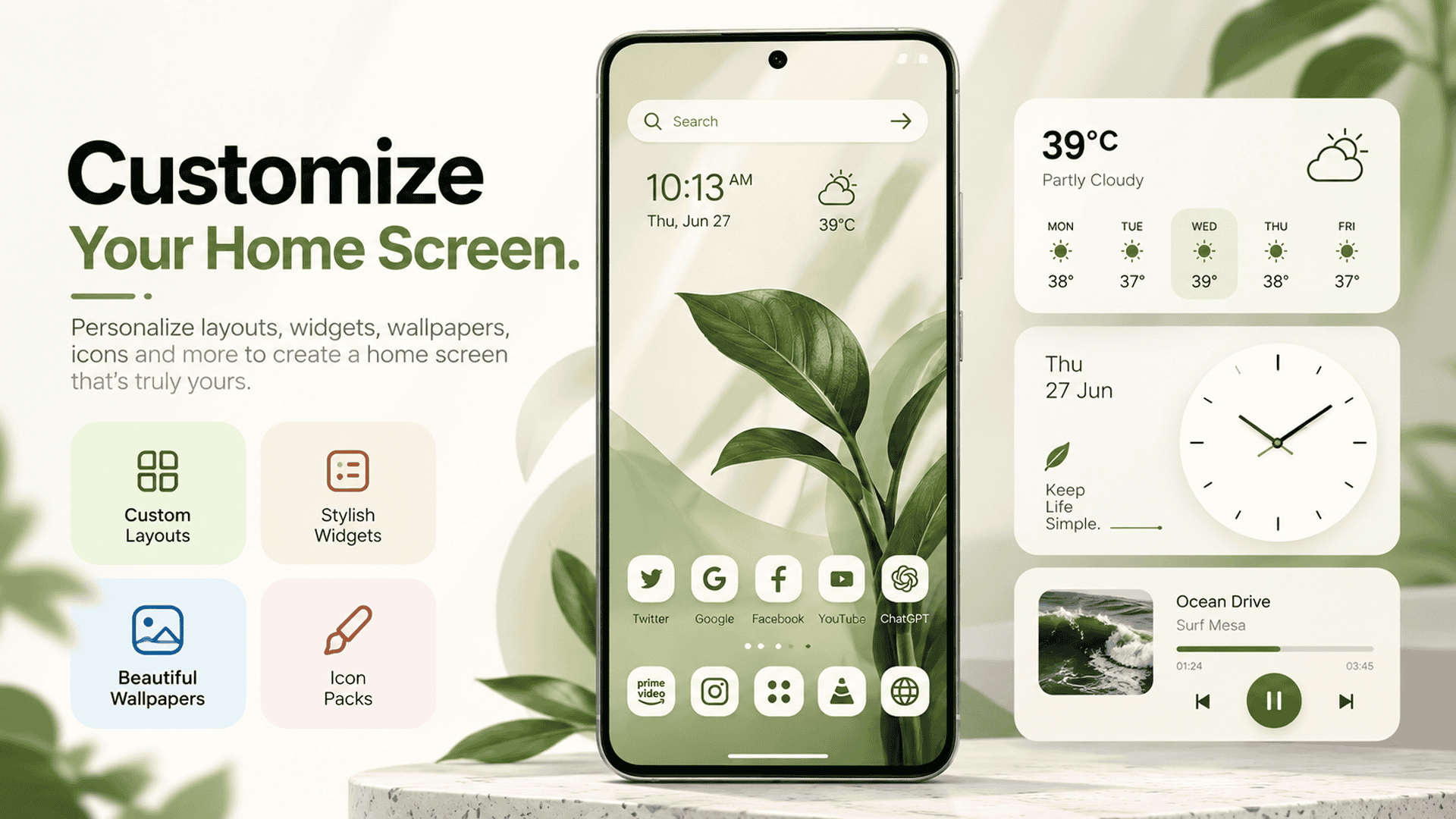
A personalized Android theme involves more than a wallpaper and icons. The overall appearance also depends on your layout, colors, shortcuts, and other supported home screen elements.
With CMM Launcher, explore the customization options available in your version to create a home screen that matches your preferences.
You could choose a minimalist arrangement with plenty of open space, a bold gaming-inspired layout, or a colorful design that highlights your favorite apps.
6. Personalize Widgets and Other Elements
Widgets can make your home screen more useful while complementing its appearance. Depending on your Android device and launcher support, widgets may display information such as the time, date, or calendar events.
For example, a minimalist theme might work well with a simple clock widget, while a colorful home screen could use a coordinated calendar design.
Example design prompt:
“Create a clean home screen concept with a minimalist clock, a simple calendar area, soft neutral colors, and plenty of open space.”
Keep in mind that generating a design concept and applying functional widgets are different processes. Available options depend on your device and the features supported by the launcher.
Best Text Prompts for Android Theme Customization
Looking for inspiration? Use these prompt ideas to plan your next home screen design.
| Theme style | Example prompt |
|---|---|
| Minimalist | Create a clean white theme with simple black icons and a soft gray wallpaper. |
| Cyberpunk | Design a futuristic theme with neon purple lights, electric blue accents, and a dark city background. |
| Pastel | Create a soft pink and lavender theme with cute icons and dreamy clouds. |
| Luxury | Design an elegant black-and-gold theme with refined patterns and sophisticated visual details. |
| Nature | Create a peaceful forest-inspired theme with rich green tones and natural textures. |
| Gaming | Design a bold gaming theme with dark backgrounds, glowing red accents, and dynamic visuals. |
| Space | Create a cosmic theme featuring deep blue colors, stars, galaxies, and futuristic icons. |
How to Write an Effective Theme Prompt
For better creative direction, include these five details in your prompt:
- Theme style: Minimalist, gaming, luxury, nature, or futuristic.
- Color palette: Specify your preferred main colors.
- Wallpaper: Describe the background or imagery you want.
- Icon design: Explain the shapes, colors, and visual style.
- Mood: Choose words such as calm, elegant, playful, energetic, or modern.
For example:
“Create a futuristic Android theme with a deep navy wallpaper, glowing cyan accents, geometric app icons, and a clean, uncluttered home screen.”
The more clearly you describe your preferences, the easier it is to communicate your design vision.
Android launcher with wallpapers
Why Choose CMM Launcher for Android Customization?
Personalizing your smartphone can be an enjoyable way to make your device feel unique. CMM Launcher is an option to explore if you want to discover different home screen customization possibilities.
Here are some reasons to explore Android launcher customization:
- Creative freedom: Experiment with different visual ideas and styles.
- Personalized appearance: Choose designs that reflect your preferences.
- Wallpaper inspiration: Explore backgrounds that complement your home screen.
- Icon customization: Discover supported ways to change your app icons.
- Flexible styling: Experiment with different colors and design directions.
- A more personal experience: Create a home screen that feels more like your own.
The exact features available depend on the current version of CMM Launcher and your Android device.
How to Get Started With CMM Launcher
If you want to personalize your smartphone, follow these general steps:
- Find CMM Launcher on Google Play and review its current features.
- Install the app if it is compatible with your device.
- Open the launcher and follow the setup instructions.
- Explore the available theme, wallpaper, icon, and home screen customization options.
- If prompt-based theme creation is supported, describe the design you want and follow the available instructions.
- Apply the supported customization options that best match your preferred style.
Review the app listing to confirm the current features, pricing, and any in-app purchases before installing.
Frequently Asked Questions (FAQs)
1. What is CMM Launcher used for?
CMM Launcher is an Android launcher that users can explore for home screen personalization. Check its current app listing to confirm which theme, wallpaper, icon, and other customization features are available.
2. Can I create an Android theme using a text prompt?
Some AI-powered customization tools let users describe a preferred theme using a text prompt. Whether a complete theme can be generated and applied depends on the features supported by the specific app.
3. Can I customize app icons with CMM Launcher?
App icon customization depends on the features available in the current version. Check CMM Launcher’s app listing and in-app options to confirm which icon customization tools are supported.
4. How do I write a prompt for an Android theme?
Describe the theme style, colors, wallpaper, icon appearance, and overall mood. For example, “Create a dark minimalist theme with black backgrounds, simple white icons, and subtle blue accents.”
5. Can I customize wallpapers and widgets together?
You can coordinate wallpapers and compatible widgets to create a consistent home screen. The available widget options depend on your Android device, widget providers, and launcher features.
6. Do I need design skills to customize my Android theme?
No professional design experience is necessarily required to describe a theme idea. Start with a simple prompt and add more details about colors, patterns, and visual styles as needed.
7. Is CMM Launcher free?
Check the current Google Play Store listing for CMM Launcher to confirm its pricing, availability, and whether specific customization features require in-app purchases.
Conclusion
Creating a personalized Android home screen starts with your imagination. From custom wallpaper concepts and coordinated app icons to different colors, layouts, and widget arrangements, there are many ways to make your smartphone reflect your personal style.
CMM Launcher gives Android users an option to explore home screen customization and discover design possibilities that suit their preferences. Where prompt-based creation is supported, a simple description can help you communicate the look you want to explore.
Whether you love minimalist designs, futuristic visuals, colorful themes, or nature-inspired styles,
experiment with different ideas and find the appearance that feels right for you.
Your ideas. Your style. Your home screen. Explore Android customization with CMM Launcher.


Leave a Reply