
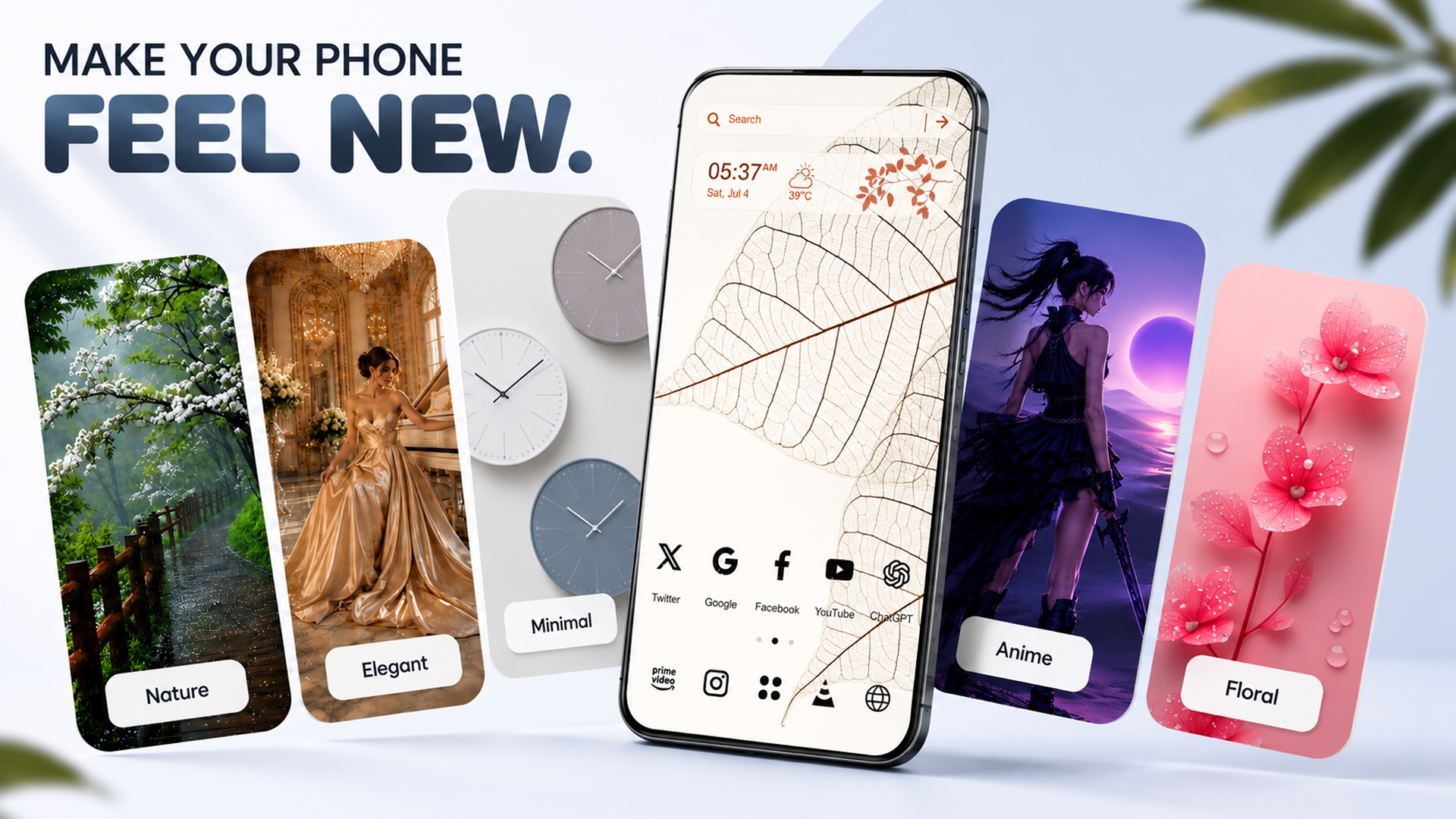
Your Android home screen is more than a place to access apps. It is an opportunity to express your personality, creativity, and style. If you love experimenting with wallpapers, app icons, and unique themes, CMM Launcher makes Android home screen customization more creative and personal.
With CMM Launcher, you can create your own themes using prompts, personalize your home screen with wallpapers, and customize the look of your app icons. Instead of relying only on ready-made designs, you can explore your ideas and turn your preferred aesthetic into a personalized Android experience.
Whether you love minimalist designs, futuristic interfaces, anime-inspired visuals, nature-themed backgrounds, or vibrant colors, CMM Launcher helps you bring your creative vision to your phone’s home screen.
What Is CMM Launcher?
CMM Launcher is an Android launcher app designed to help users personalize their phone’s home screen. It offers a way to explore custom themes, wallpapers, and app icon styles to create a look that reflects individual preferences.
Traditional launchers often focus on applying existing themes and icon packs. With CMM Launcher, you can take a more creative approach by using prompts to describe the style you want and exploring personalized visual designs.
The goal is simple: make it easier to create a home screen that feels unique to you.
Key Features of CMM Launcher
1. Create Custom Android Themes Using Prompts
Have you ever imagined a phone theme but struggled to find the right one? With CMM Launcher, you can describe your preferred style through a prompt and use your idea as the starting point for theme creation.
For example, you might want a clean, minimalist home screen with soft colors or a futuristic design with neon accents. A descriptive prompt helps communicate the visual style you have in mind.
Example AI theme prompts:
- Minimalist aesthetic: Create a clean Android theme with beige backgrounds, elegant icons, and a simple, modern appearance.
- Cyberpunk style: Design a futuristic theme featuring neon purple and blue colors, glowing details, and a dark interface aesthetic.
- Nature-inspired theme: Create a peaceful green theme with forest-inspired visuals, natural colors, and a relaxing atmosphere.
- Space theme: Design a cosmic home screen with galaxies, planets, deep blue tones, and futuristic app icons.
- Pastel aesthetic: Create a soft pink and lavender theme with cute icons and a light, dreamy visual style.
With prompt-based customization, you can experiment with different ideas and discover a design that matches your personality.
2. Personalize Your Phone With Custom Wallpapers
A wallpaper can completely change the appearance of your Android phone. It influences the colors, mood, and overall style of your home screen.
CMM Launcher helps you explore wallpaper-based customization so you can build a home screen around the visuals you love.
You can draw inspiration from different wallpaper styles, such as:
- Minimalist wallpapers with simple shapes and neutral colors
- Nature wallpapers featuring mountains, forests, and landscapes
- Abstract wallpapers with creative patterns and gradients
- Futuristic wallpapers with digital artwork and neon colors
- Cute and aesthetic wallpapers with pastel shades
- Space wallpapers featuring stars, planets, and galaxies
Pro tip: Choose a wallpaper that complements your app icons. Matching colors and visual styles can make your home screen look more cohesive and polished.
3. Customize Your Android App Icons
App icons are an important part of a personalized home screen. Even when you use a beautiful wallpaper, mismatched icons can make the overall design feel inconsistent.
CMM Launcher brings icon customization into the personalization experience, helping you explore visual styles that suit your preferred theme.
Depending on your chosen aesthetic, you can look for inspiration in styles such as:
- Minimalist app icons
- Color-coordinated icons
- Cute and pastel icons
- Dark-mode-inspired icons
- Futuristic and neon icons
- Artistic and illustrated icons
For example, if you create a dark cyberpunk theme, futuristic icons with bright accent colors can help complete the look. If you prefer a minimalist theme, simple icons with a consistent color palette may work better.
The result is a more personalized home screen where your wallpaper, icons, and overall theme work together.
4. Build a Home Screen That Reflects Your Personality
Everyone uses their phone differently, so a personalized home screen should reflect individual tastes.
CMM Launcher gives you the opportunity to explore different visual directions instead of sticking to one design style.
You might prefer a professional, minimal layout for everyday use, a colorful aesthetic for creative inspiration, or a futuristic appearance that stands out. By experimenting with prompts, wallpapers, and icons, you can explore combinations that suit your preferences.
Your phone can be simple, colorful, artistic, futuristic, or anything in between.
How to Create a Custom Android Theme With CMM Launcher
Creating a personalized home screen starts with an idea. Follow this general workflow to plan your theme using CMM Launcher.
Step 1: Choose a theme concept
Decide what you want your phone to look like. Consider styles such as minimalist, anime-inspired, nature, gaming, luxury, or futuristic.
Step 2: Write a descriptive prompt
Describe your preferred colors, mood, visual style, and design elements.
Example prompt:
“Create a modern minimalist Android theme with a soft cream background, muted green accents, clean app icons, and an elegant, clutter-free aesthetic.”
Step 3: Explore your wallpaper
Choose or create a wallpaper that complements your theme concept. Consider how the colors and details will look behind your home screen icons.
Step 4: Personalize your app icons
Explore icon styles that match your wallpaper and theme. Consistent colors and shapes can help create a more unified appearance.
Step 5: Apply and refine your design
Use the available customization options in CMM Launcher to bring your preferred look together. Adjust the elements available to you until the home screen feels right.
Note: Exact controls and available customization options may vary by app version.
Best AI Prompts for Android Theme Creation
Not sure what to type when creating a theme? Try these prompt ideas as starting points.
| Theme style | Example prompt |
|---|---|
| Minimalist | Create a clean home screen with neutral colors, simple icons, and a modern aesthetic. |
| Anime-inspired | Create a colorful anime-inspired theme with expressive artwork, coordinated icons, and a vibrant atmosphere. |
| Gaming | Design a gaming-inspired theme with dark backgrounds, electric blue accents, and futuristic visuals. |
| Luxury | Create an elegant theme with black backgrounds, gold accents, and refined icon styling. |
| Nature | Design a peaceful theme featuring forest greens, natural textures, and calming visuals. |
| Pastel | Create a cute pastel theme with pink and lavender shades and soft, coordinated icons. |
| Cyberpunk | Design a futuristic neon theme with glowing purple accents, dark backgrounds, and high-tech visuals. |
| Space | Create a cosmic theme with galaxy-inspired artwork, deep blues, stars, and coordinated icons. |
How to get better results: Be specific about colors, lighting, mood, patterns, and icon styles. Instead of writing “make a cool theme,” describe exactly what you want to see.
For example, “Create a dark futuristic theme with matte black backgrounds, electric blue highlights, subtle geometric patterns, and clean rounded icons” provides a clearer creative direction.
Why Choose CMM Launcher for Android Customization?
Choosing an Android launcher is about more than changing the appearance of your home screen. It is about finding a customization experience that suits your preferences.
Here are some reasons to explore CMM Launcher:
- Creative theme ideas: Use prompts to describe the look you want to explore.
- Wallpaper personalization: Build your home screen around visuals that match your style.
- Icon customization: Explore app icon designs that complement your theme.
- Multiple aesthetics: Experiment with minimalist, colorful, nature-inspired, and futuristic looks.
- Personal expression: Create a home screen that feels more personal than a standard layout.
If you enjoy changing your phone’s appearance or experimenting with different design styles, CMM Launcher offers a creative way to explore Android personalization.
CMM Launcher vs. Traditional Android Theme Customization
Traditional theme customization often starts with choosing a pre-designed theme or downloading an icon pack. This can be convenient, but it may not always match the exact style you have in mind.
A prompt-based approach adds another layer of creativity because you can begin by describing your own idea.
Create a Unique Android Theme with Text Prompts | CMM Launcher
| Feature | Traditional theme approach | Prompt-based customization with CMM Launcher |
|---|---|---|
| Starting point | Existing themes or icon packs | Your theme idea or prompt |
| Creative direction | Usually based on available designs | Describe your preferred visual style |
| Wallpaper styling | Depends on available options | Explore wallpaper choices around your concept |
| Icon appearance | Depends on available icon packs | Explore icon styles that suit your theme |
| Personalization | Select and apply available designs | Experiment with ideas and visual combinations |
Actual capabilities depend on the features available in the installed app version and the customization options it supports.
Who Should Use CMM Launcher?
CMM Launcher may be worth exploring if you enjoy personalizing your Android device.
- Android customization enthusiasts who like experimenting with home screen designs.
- Aesthetic lovers who want wallpapers and icons that match a particular visual style.
- Creative users who enjoy turning written ideas into visual concepts.
- Minimalism fans who prefer clean layouts and coordinated colors.
- Gaming and anime fans who enjoy themed visual experiences.
- Everyday users who want their phones to feel more personal.
Whether you change your theme every week or prefer one carefully designed home screen, customization can make your everyday phone experience feel more individual.
Frequently Asked Questions About CMM Launcher
1. What is CMM Launcher?
CMM Launcher is an Android launcher app for personalizing your phone’s home screen. Its customization experience includes theme creation using prompts, wallpaper personalization, and app icon styling.
2. Can I create my own Android theme with CMM Launcher?
CMM Launcher supports a prompt-based approach to theme creation, allowing you to describe a visual concept and explore a personalized theme. Available creation and application options depend on the installed version.
3. Can I use prompts to create themes?
Yes. Prompt-based theme creation lets you describe a style, color palette, or visual concept. For example, you can describe a minimalist, futuristic, pastel, or nature-inspired theme to guide your design.
4. Can I customize wallpapers with CMM Launcher?
CMM Launcher supports wallpaper-based personalization. You can explore wallpaper choices that complement your preferred theme and help create a consistent home screen appearance. Specific wallpaper creation and editing capabilities may vary by version.
5. Does CMM Launcher support app icon customization?
CMM Launcher offers icon customization as part of its home screen personalization experience. The available icon styles and controls depend on the version you use.
6. What are the best prompts for creating Android themes?
The best prompts describe the design style, colors, mood, and visual details you want. For example, “Create a minimalist theme with a cream wallpaper, sage-green accents, and simple, coordinated icons.”
7. Is CMM Launcher suitable for beginners?
Its prompt-based approach can make theme ideas easier to communicate, even if you have little design experience. The available controls and learning experience depend on the current app version.
8. How can I make my Android home screen look aesthetic?
Start with a clear visual style, choose a complementary wallpaper, coordinate your app icons, and avoid mixing too many colors or unrelated design elements. A well-planned combination can make your home screen feel more organized.
9. How is CMM Launcher different from a regular Android launcher?
CMM Launcher emphasizes creative personalization through prompts, wallpapers, and icon customization. Traditional launchers may focus more on layout adjustments or selecting existing themes. The exact differences depend on the features of each app.
10. Where can I get CMM Launcher?
Look for CMM Launcher through its official distribution channel or its verified Google Play listing, if available. Check the developer name and app details before installing.
Final Thoughts: Create an Android Home Screen That Is Uniquely Yours
Personalizing your phone should be an enjoyable way to express your creativity. With CMM Launcher, you can explore prompt-based theme creation, experiment with wallpapers, and customize app icons to develop a home screen that reflects your style.
From minimalist designs and soft pastel aesthetics to bold cyberpunk visuals and cosmic themes, your next home screen can start with a simple idea.
Ready to rethink your Android home screen? Explore CMM Launcher and start creating a theme inspired by your imagination.


Leave a Reply